Managing and creating global variables
You can configure and manage global variables on your account by navigating to Manage > Global Variables. From this page, you can create new variables and manage existing ones.
-
Click Create Variable.
-
Configure the following fields:
- Encrypt Global Variable - If selected, the variable's value is encrypted.
- Name - (Required) Enter a name for the variable. The name is not case sensitive. For example, if you enter “Test_Variable”, the variable name will display as
{TEST_VARIABLE}. - Description - (Optional) Describe the purpose of this variable.
- Initial Value - (Available only for non-encrypted variables) Set an initial value for the variable. The Initial Value is the default starting value assigned to a global variable. When the variable is first created, this value is automatically applied to all existing environments. If you update the Initial Value later, the new value will be pushed only to new environments created after the update. Existing updates will retain the value currently assigned to them, which might be the previous initial value or a value that was manually changed by a user.
-
Click Create.
The new variable is displayed in the list, showing its name, status, whether the variable is encrypted, its initial value, the date it was last updated, and the option to archive it. Clicking a variable opens the variable pane, which displays additional information about the variable, including the date it was created and the user who last modified it.
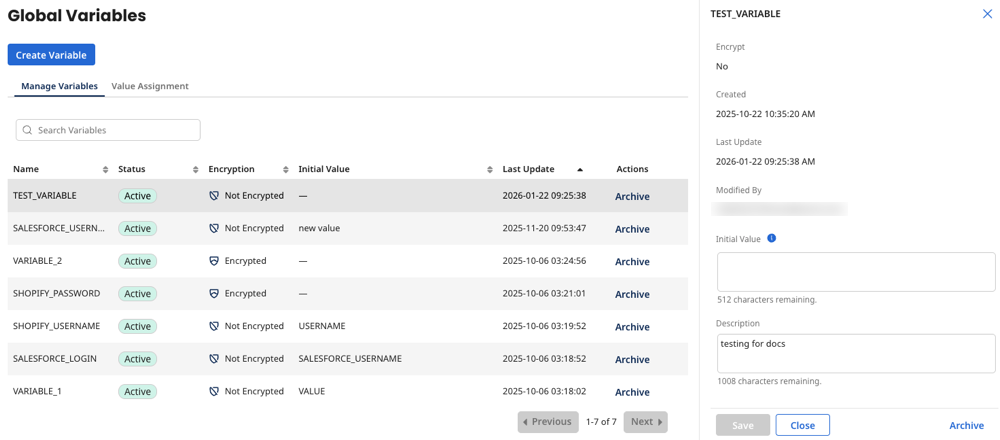
You can update the initial value and description from this pane. Be sure to click Save to save your changes to the variable.
To archive a variable, click Archive from the Actions column or the information pane. Archiving a variable keeps existing deployments as a reference, but the value can no longer be edited until unarchived.
Assigning values to variables
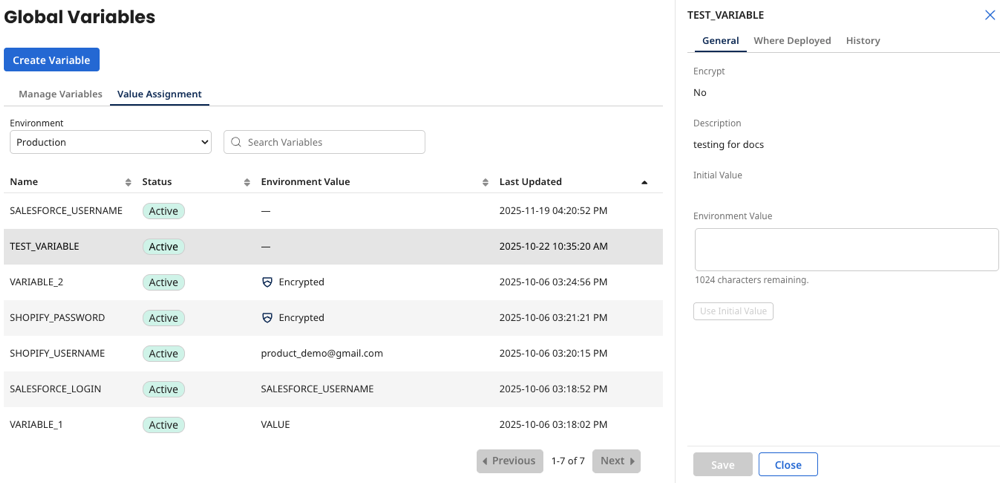
From the Value Assignment tab, you can manage variables by assigned environment and set environment values. Use the Environment drop-down to select the environment for which you want to view variables. The status column indicates whether the variable is active or archived.
Click the variable for which you want to set an environment value. The variable pane opens and you can set a value in the Environment Value text box. If the variable is encrypted, click the Encrypted button to set a value, then click Apply. Be sure to click Save after setting the value to save your changes to the variable.
Where Deployed tab
The Where Deployed tab allows you to quickly identify which deployed packages reference the selected variable. You can also search and sort the list of deployed packages. Clicking a deployed package shows the specific components that reference the selected variable.
History tab
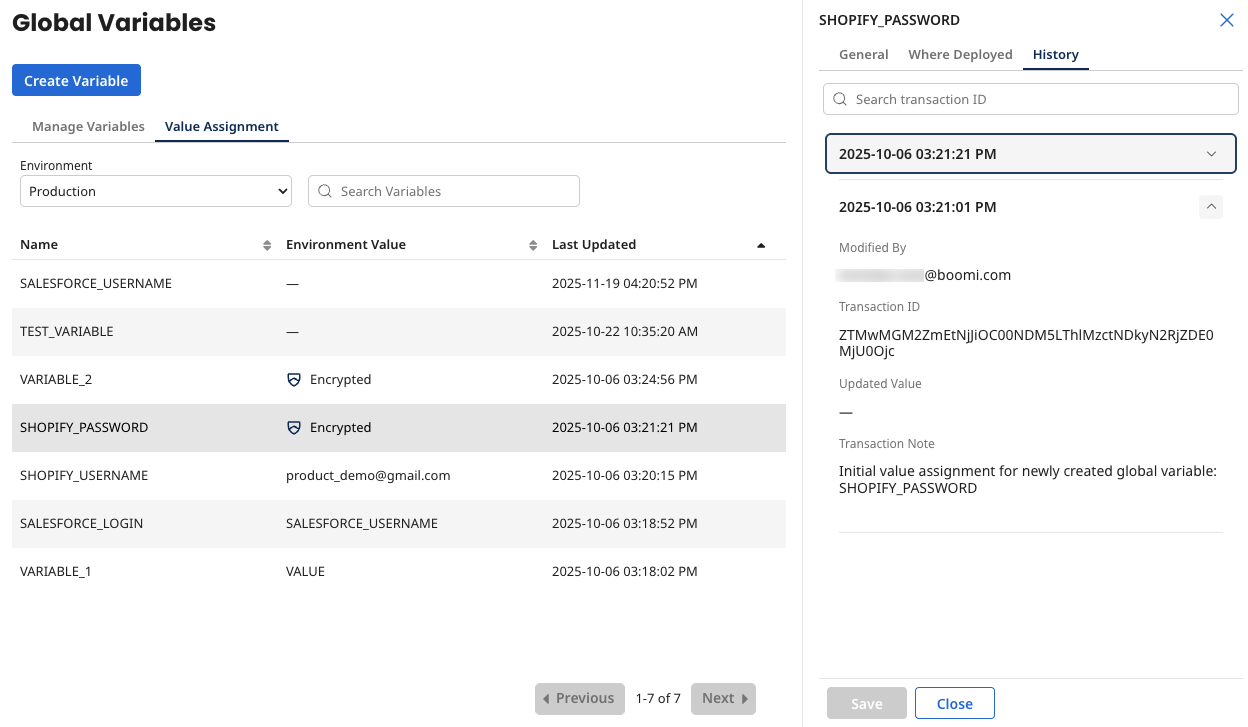
The History tab provides a chronological history of changes made to the selected variable, including who made the change, when it occurred, and what specific values were modified. You can quickly revert configuration errors by restoring a previous variable value from the history log. You can also search for a specific update by using the search bar. Click each transaction to view the details of the update.